Doing the work
Requests & Enquiries
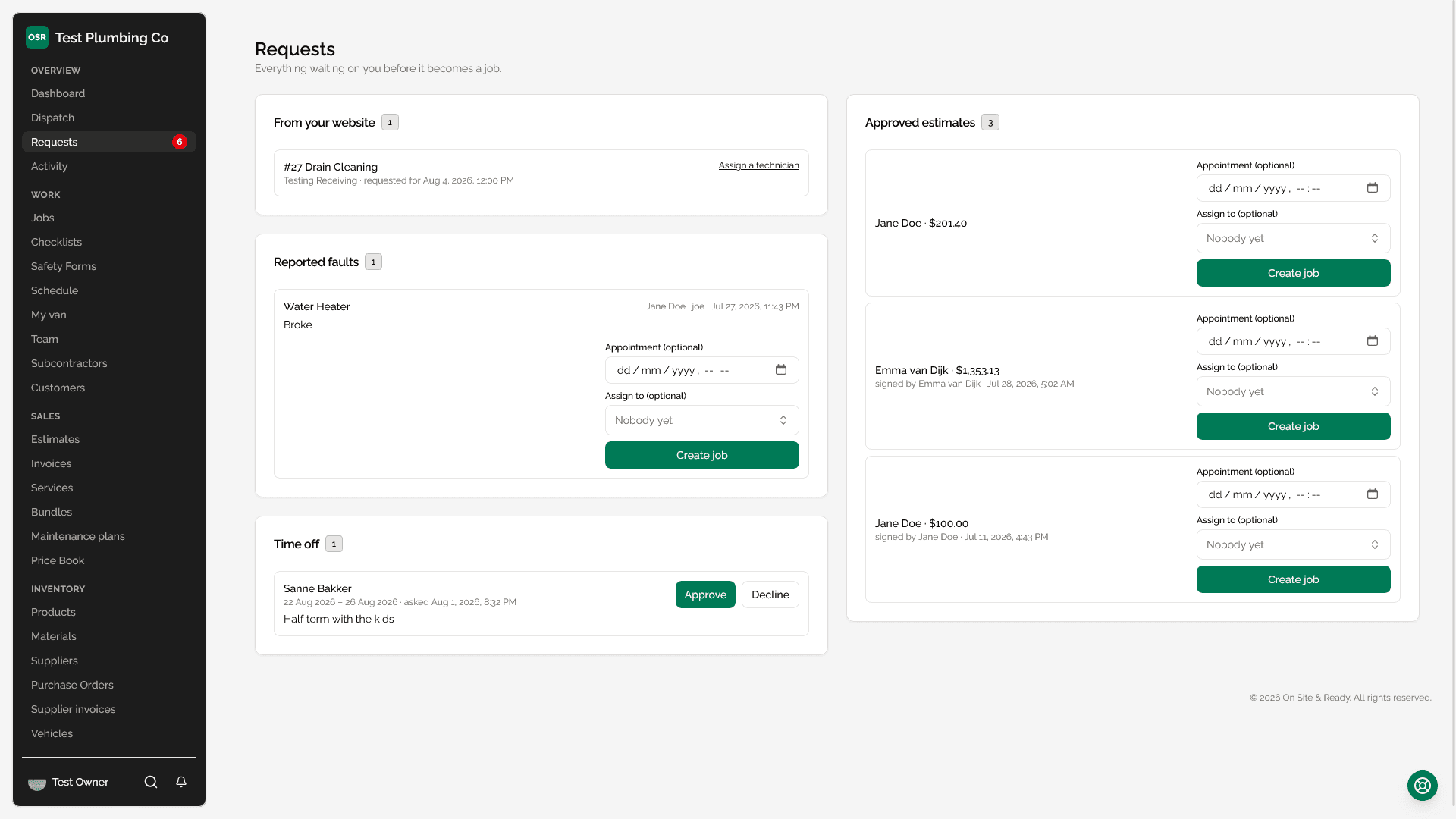
What lands here
| Section | Where it came from | What you do with it |
|---|---|---|
| From your website | Your public booking page, or the quote form on your website | Assign a technician and create the job — or, for a quote request, price it as an estimate |
| Messages from your website | The contact form on your site | Reply by email or phone, then mark it handled — or make the sender a customer |
| Approved estimates | A customer approving and e-signing a quote from their portal | Set an appointment, assign people, create the job |
| Reported faults | A customer scanning the QR sticker on one of their assets | Raise a job against that asset, with or without a time |
| Referred by a customer | Your referral scheme | Same as a booking, with the referrer recorded |
| Time off | A team member asking for days off | Approve or decline, with an optional note they will see |
Booking requests
Every business gets a public booking page that anyone can use without an account. A request carries the requester's name, email, phone, an optional service and a preferred date and time.
The appointment field on the request is optional when you convert it. A business that wants to triage first can raise the job unscheduled, and the customer is only emailed once there is a time to confirm.
What this does not do
Quote requests
The quote form on your own website is a different shape from a booking: no date field, and a description is required. It lands in the same inbox marked as a Quote, and the action on it is “Price it” rather than “Assign a technician”.
Same inbox on purpose. Somebody wanting a price and somebody wanting a Tuesday are both work arriving, and splitting them into two screens means one of the two gets checked less often.
Messages from your website
The contact form on your site is for questions, not jobs — “do you cover my village?”, “can you fit a part I already bought?”. Each message lands here with the sender's name, email, phone (if you asked for it) and the page they sent it from, and you are notified as it arrives.
Answer it by email or phone straight from the card, then choose Mark handled to clear it. If the sender is worth keeping, Make a customer creates them — or finds the customer they already are, by email — and opens their record. Messages are never deleted, so what a customer asked stays on file.
Spam is filtered out before it gets here, without asking your visitors to tick a box or solve a puzzle.
Reported faults
A customer who scans the QR sticker on an asset can report a fault without logging in. Those arrive here with the asset attached, so the job you raise is already pointed at the right unit and the right property. See Equipment & Assets.
Time-off requests
Time off sits in the same inbox rather than in a separate approvals screen, because it is the same question: something is waiting on a decision from you. Approving it feeds straight into scheduling — approved time off makes somebody unavailable for assignment, including for automations that pick from a pool.
Worth knowing